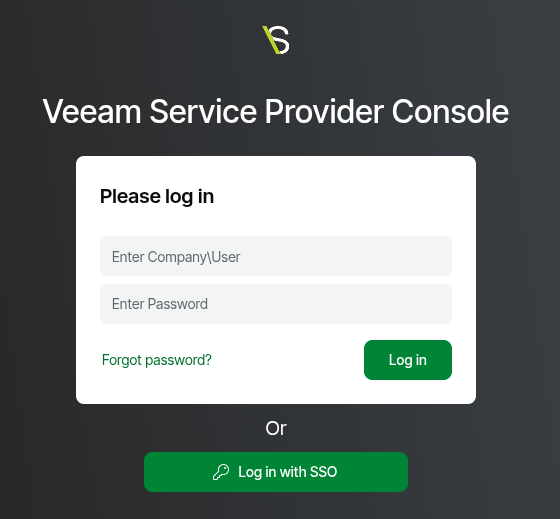
- Log into the Veeam Service Provider Console
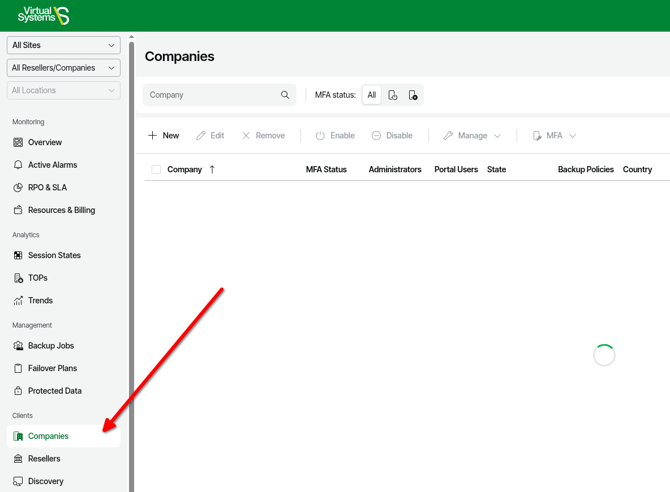
- Click on Companies in the left navigation.
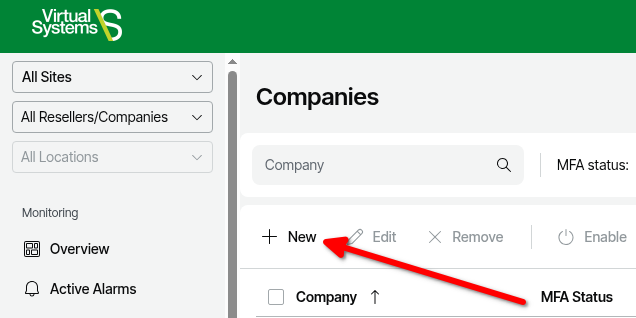
- On the Companies page, click New.
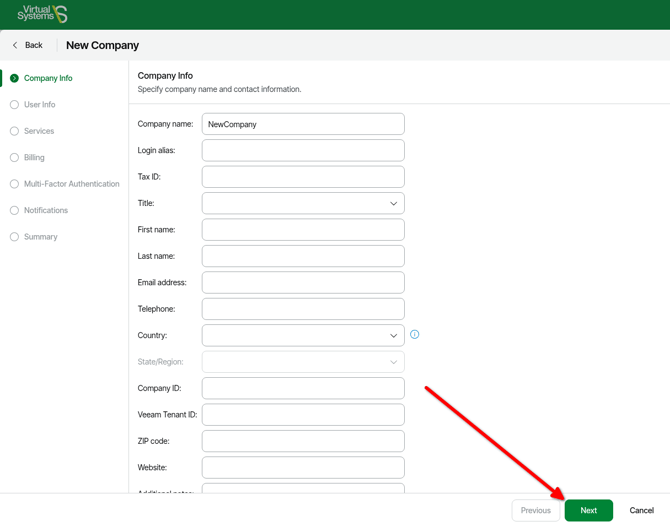
- On the Company Info page, specify general company details:
- Required -In the Company name field, specify a company name.
- Optional - In the Login alias field, specify a short name for login to the backup portal.
- Optional - In the Tax ID field, type the company tax identification number.
- Optional - In the Title field, choose how to address a contact person in a company.
- Optional - In the First name and Last name fields, specify the first and last names of a contact person in a company.
- Optional - In the Email address field, specify a contact email address.
- Optional - In the Telephone field, specify a contact phone number.
- Optional - In the Country list, choose a country where the company is located.
- Optional -In the State/Region list, choose a region where the company is located.
- Optional - In the Company ID field, type a company ID that will be used for integrating Veeam Service Provider Console with 3rd party systems.
- Optional - In the Veeam Tenant ID field, type a tenant ID that will be used for integrating Veeam Service Provider Console with VCSP Pulse.
- Optional - In the ZIP code field, specify a postal code.
- Optional - In the Website field, specify a URL of a company website.
- Optional - In the Additional notes field, type any additional details or comments.
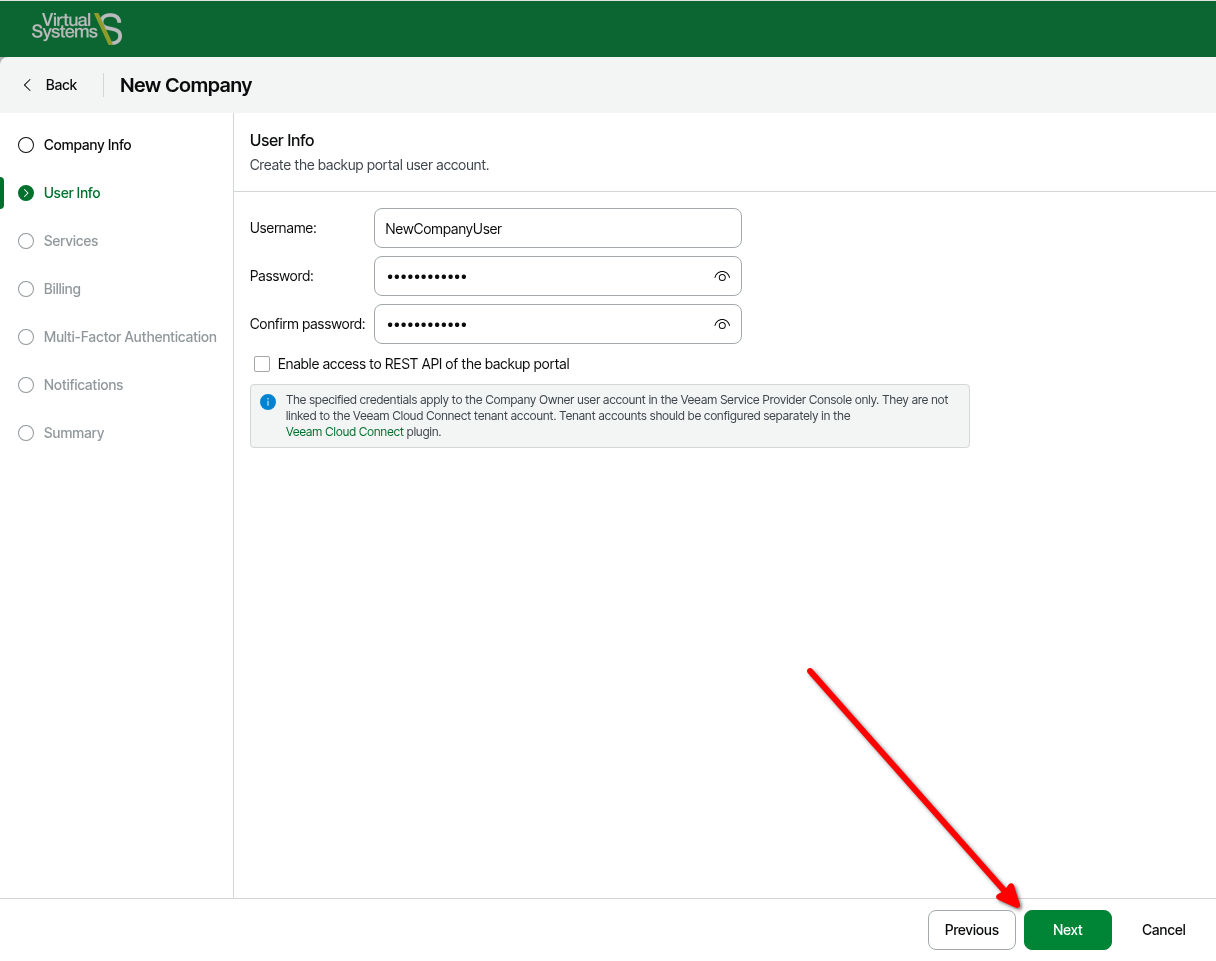
- On the User Info page, enter the username and password the tenant will use to connect to the service provider in the tenant's Veeam Backup and Replication console.
-
- Optional - To allow company users to access Veeam Service Provider Console REST API, select the Enable access to REST API of the backup portal check box.
-
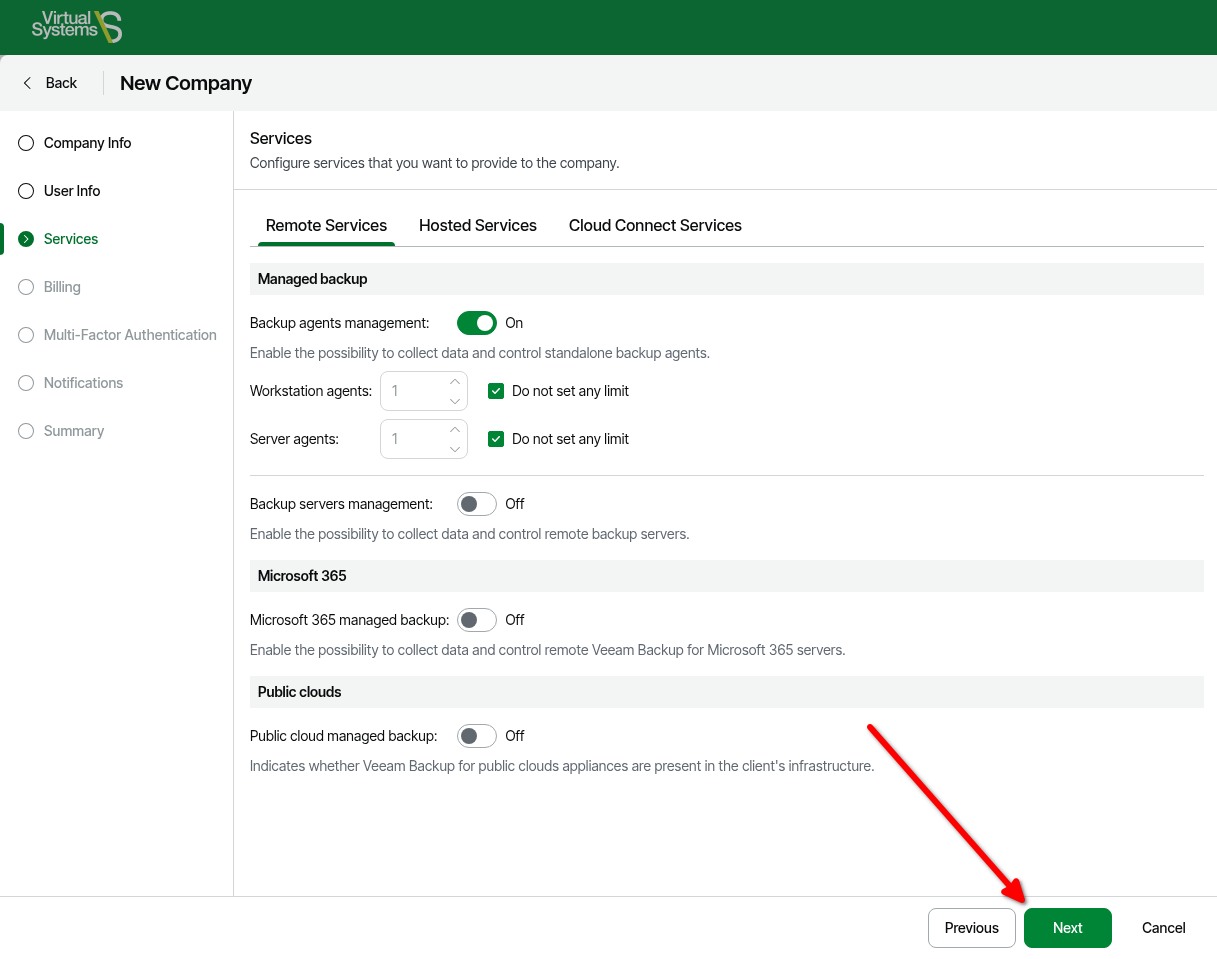
- Optional - allocate services. If no cloud services are desired, click Next.
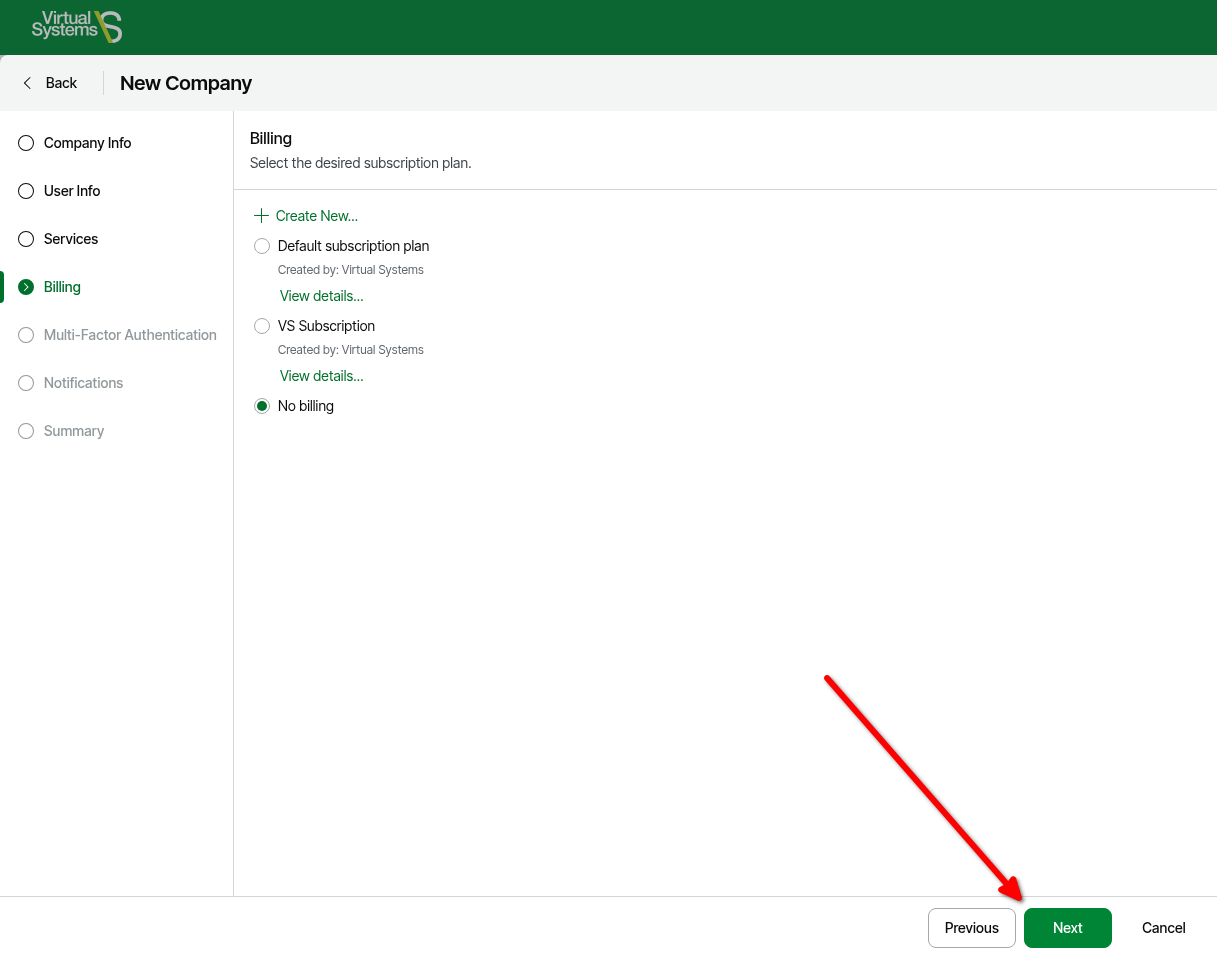
- On the Billing page, select a Billing subscription plan or No billing depending on if it is desired to use VSPC to send customer invoices > click Next.
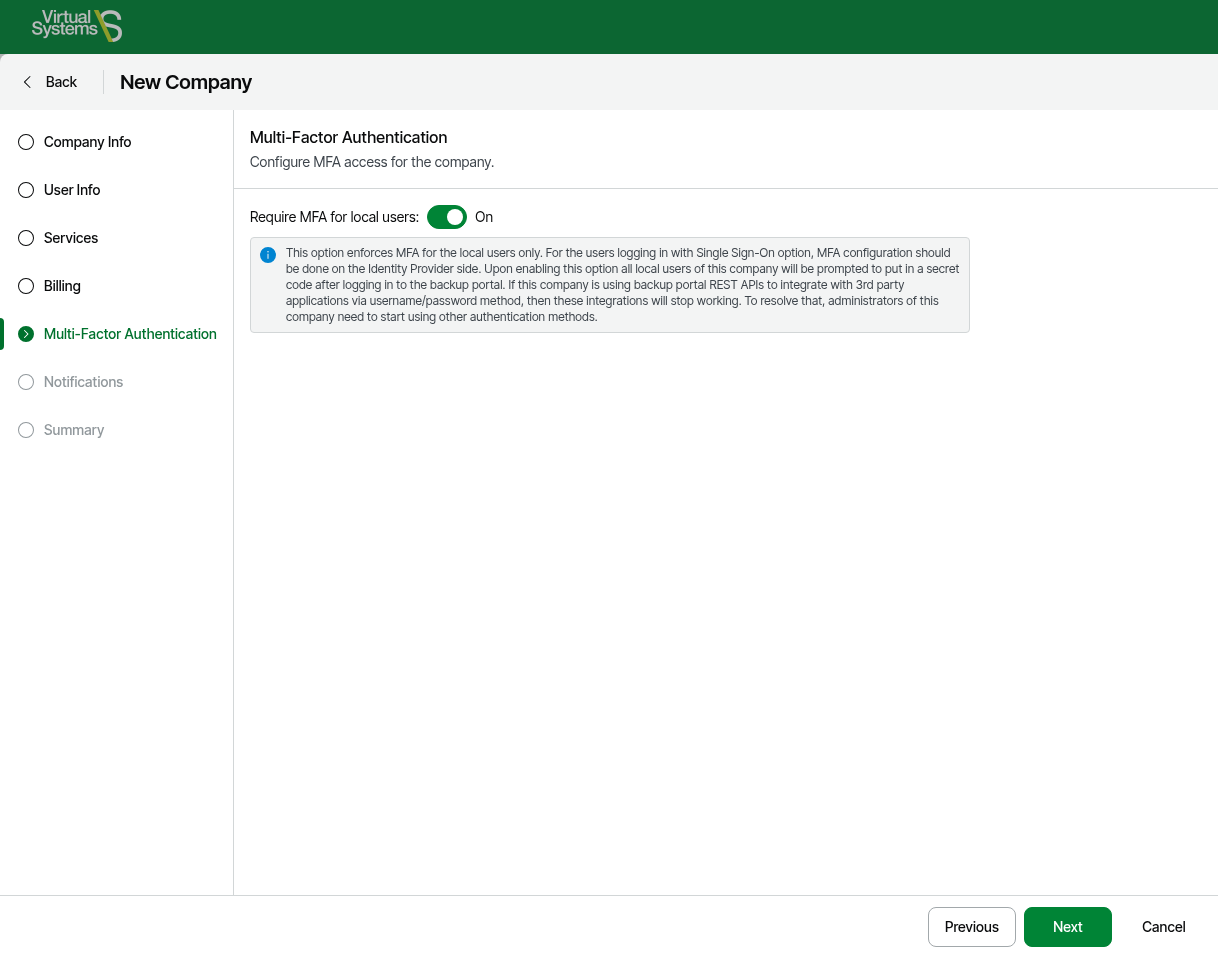
- On the Multi-Factor Authentication page, it is recommended to enable MFA for the company to log into the VSPC portal > click Next.
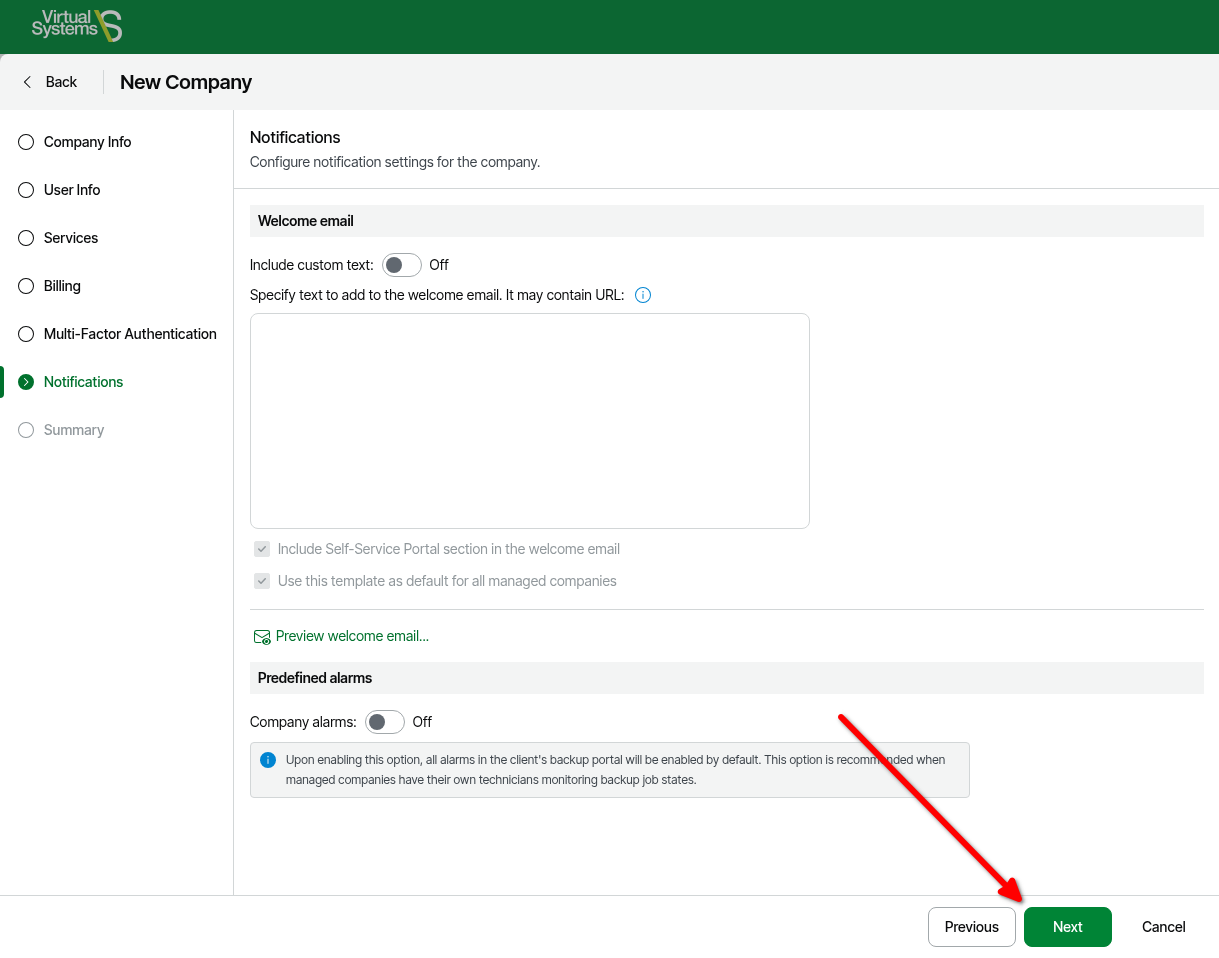
- On the Notifications page, optionally send an email to the company with the sign up information. This will send to the email address configured in the Company Info section > click Next.
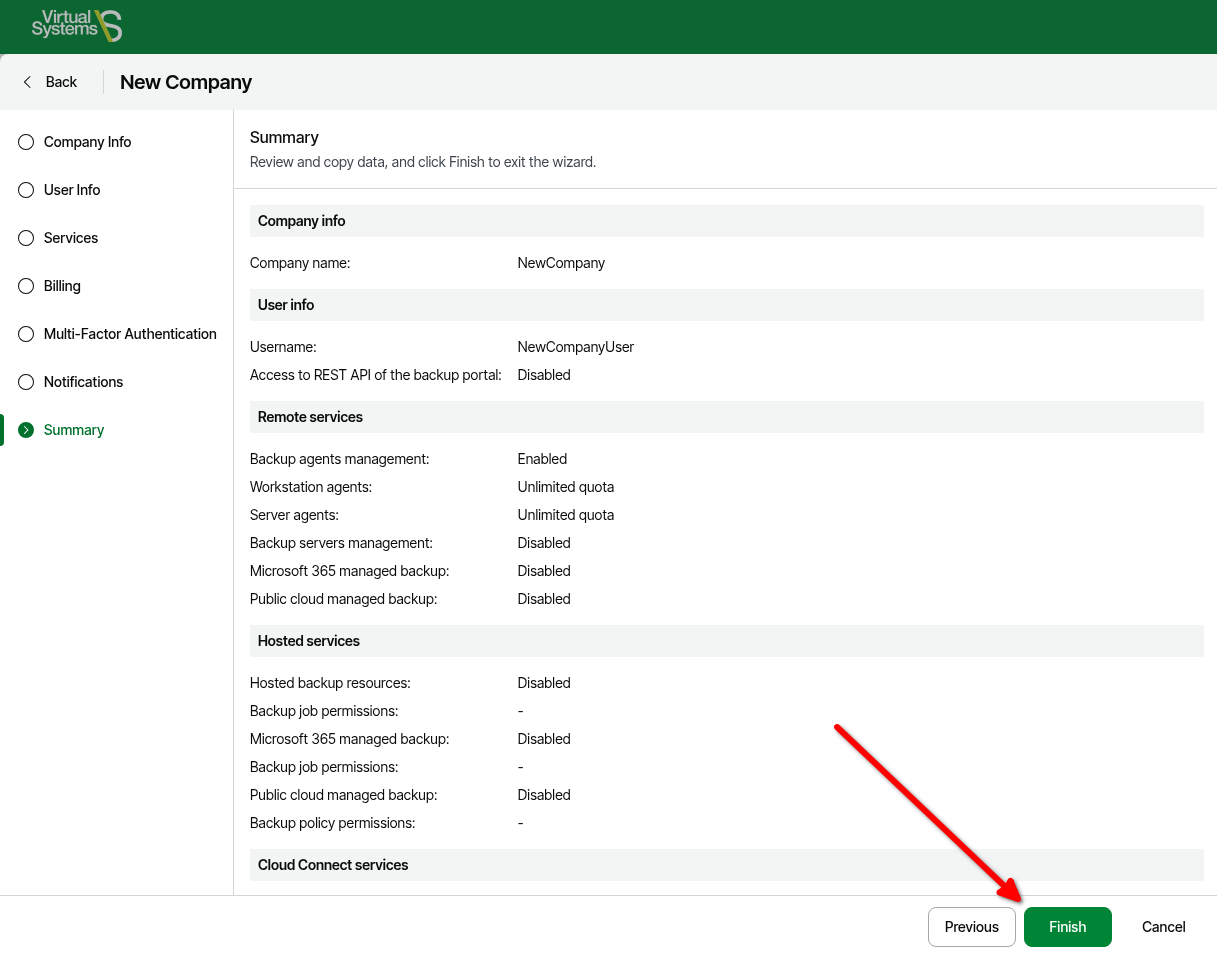
- Finally, on the Summary page, click Finish.
- Now, the tenant can connect the tenant's Veeam Backup and Replication server to the Service Provider following the steps here.
English
![VSystems_Decked_Grey_4col-1.png]](https://kb.vsystems.com/hs-fs/hubfs/VSystems_Decked_Grey_4col-1.png?height=40&name=VSystems_Decked_Grey_4col-1.png)